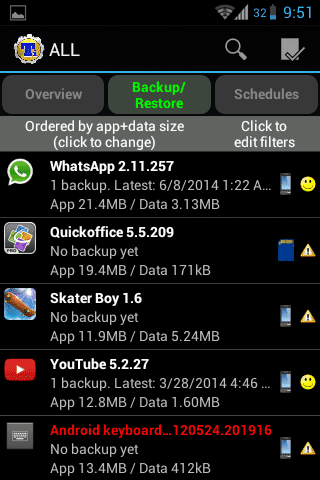
Titanium Backup is one of the most used app for rooted android. It provides a large number of features like backing up all your apps(with data), contacts, saved WiFi password, freeze, defrost, conversion of user app to system app, uninstall of any app and a lot more. Yesterday when I started my Titanium Backup app it was unable to get Root privilege, other root based application were working perfectly fine. Here are the screenshots of the problem.
.png)

2. Now that we have make sure that the problem is related only to Titanium Backup and simple restart is not gonna solve it. I want you to go to Settings option of your android and open up the Apps option that contains the information and operation related to all the applications present in your device.
 3. In Apps go to Downloaded present on the top and search for Titanium Backup app in the list of downloaded apps.

4. Select the option Clear data present below the storage information of Titanium Backup. This will not affect any of the backups you have created using Titanium Backup in your device so no need to worry about a thing.
 5. That's quite simple isn't it. Run the Titanium Backup App, it should work fine now. Have any problems/doubts feel free to comment below.

Steps To Solve Titaninum Backup Root Access Failed
1. First of all check other root application on your device to make sure that the problem is only happening in Titanium Backup App. If it is happening with all of your root application re-install and update the superuser application. Sometimes the problem is solved by a simple restart, so make sure you restart your device before trying the steps given steps below.2. Now that we have make sure that the problem is related only to Titanium Backup and simple restart is not gonna solve it. I want you to go to Settings option of your android and open up the Apps option that contains the information and operation related to all the applications present in your device.
4. Select the option Clear data present below the storage information of Titanium Backup. This will not affect any of the backups you have created using Titanium Backup in your device so no need to worry about a thing.